
Most WordPress sites don’t break all at once. They break slowly: a skipped update here, a backup that quietly stopped running there, a contact form nobody tested since launch. Then one day the site is down, hacked or losing leads, and nobody knows when it started.
We look after WordPress sites every month for our partner agencies. This is the exact checklist we run on each one, in the order we run it. Copy it, adapt it, or hand it to us.
Why a monthly checklist matters
A maintenance plan is only as good as its consistency. “We’ll update things when we remember” is how sites end up years out of date. A fixed monthly routine does three things:
- It catches problems while they’re small, before a client notices.
- It makes the work predictable, so you can price it as a retainer.
- It gives you something to show the client: a monthly report that proves the work was done.
Before you start: take a fresh backup
Never touch a live site without a restore point. Before anything else each month:
- Run a full backup (files and database), not just the scheduled one.
- Confirm the backup finished successfully and is stored off the server (cloud storage, not the same hosting account).
- Note the backup date in the maintenance log.
If something goes wrong in the next hour, this is what saves you.
1. Updates: core, plugins and themes
Updates fix security holes and bugs, but they’re also the most common cause of a broken site. We do them carefully, not with one click on “Update all”.
- Check what needs updating: WordPress core, plugins and themes.
- Read the changelog for major updates, such as a new main version of WooCommerce, your page builder or a form plugin.
- Update on staging first for anything major, then test before updating the live site.
- Update one at a time on sites with WooCommerce or complex plugins, so if something breaks you know which update caused it.
- Check the PHP version your host is running and whether your plugins support the next version.
- Remove plugins and themes you don’t use. Inactive plugins still need updating and can still be exploited.
Tip: never edit a parent theme directly. Customizations belong in a child theme, or the next theme update will erase them.
2. Security checks
- Run a malware scan with your security plugin or your host’s scanner.
- Review admin users. Remove old staff, freelancers and anyone who no longer needs access. Make sure nobody has more access than they need.
- Confirm two-factor authentication is on for every administrator.
- Check failed login attempts and block repeat offenders.
- Confirm the SSL certificate is valid and not close to expiring.
- Check file permissions and make sure file editing from the dashboard is disabled.
- Check plugins for known security issues, especially any plugin that hasn’t been updated by its developer in a long time.
3. Backups: test them, don’t just trust them
A backup you’ve never restored is a guess, not a backup.
- Check that automatic daily (or weekly) backups ran every day this month.
- Check how long backups are kept: at least 30 days, so you can go back before a problem started.
- Do a test restore to a staging site once a quarter. It’s the only way to know a backup actually works.
4. Speed and performance
Slow sites lose visitors and rankings. We check the same pages every month, so we can see the trend.
- Test the homepage and 2–3 key pages in PageSpeed Insights (mobile first).
- Check Core Web Vitals in Google Search Console for pages marked “poor” or “needs improvement”.
- Clear and rebuild the cache after updates.
- Look for new heavy images. Large uploads from the client are the most common cause of a sudden slowdown.
- Clean the database: old revisions, spam comments, expired temporary data.
- Check server response time. If it’s creeping up month after month, the hosting plan may be outgrown.
5. Uptime and errors
- Review uptime monitoring for any downtime this month and find out why it happened.
- Check the error log for repeated PHP errors or warnings.
- Scan for broken links and fix them or redirect them.
- Look for 404 errors in Search Console, and redirect any important old URLs.
6. Forms, checkout and key journeys
This is the step most maintenance plans skip, and it’s the one that costs clients money. A site can be “up” while its contact form has silently stopped sending emails.
- Submit every contact form and confirm the email arrives, in the inbox, not spam.
- Check email delivery is set up properly (SMTP) rather than relying on the server’s default mail.
- For WooCommerce: place a test order from start to finish, including payment and the confirmation email.
- Test the site on mobile: menu, buttons and forms.
- Click every main menu link and call-to-action button.
7. SEO health
Maintenance isn’t an SEO campaign, but a monthly check catches problems that quietly cost traffic.
- Check Search Console for new indexing errors, manual actions or security warnings.
- Confirm the XML sitemap loads and is submitted.
- Make sure “Discourage search engines” is still off. It sometimes gets switched on during staging work and never switched back.
- Check that new pages have titles and meta descriptions.
- Watch for sudden traffic drops and match them against update dates or downtime.
8. Content and housekeeping
- Delete spam comments and unused media where it’s safe to do so.
- Check copyright years, contact details and opening hours are current.
- Remove leftover test pages or demo content.
- Check legal pages (privacy policy, cookie notice) still match the tools on the site.
9. Report to the client
The work isn’t finished until the client knows it was done. A short monthly report should cover:
- Updates applied (core, plugins, themes)
- Backups confirmed, and the last test restore date
- Security scan results and any issues fixed
- Uptime for the month
- Speed scores, compared with last month
- Problems found and fixed, and anything that needs a decision from the client
Keep it to one page. Clients don’t read long reports, but they do notice when the report stops arriving.
How long does monthly maintenance take?
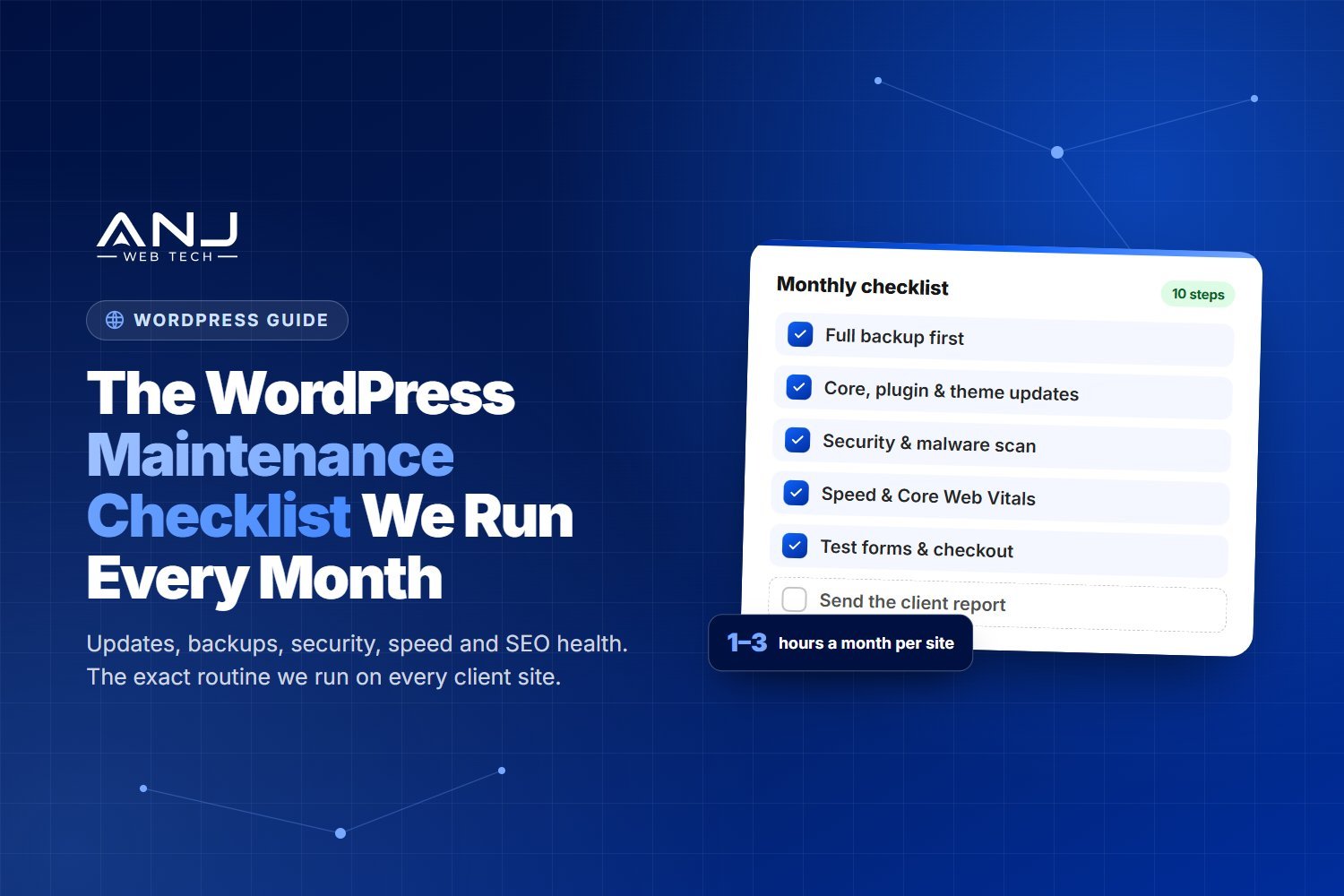
For a typical business site with a sensible number of plugins, the routine checks take one to three hours a month. WooCommerce stores, membership sites and sites with many plugins take longer, mostly because of careful testing after updates.
The time adds up quickly across a client list. That’s why many agencies sell maintenance as a monthly retainer but hand the actual work to a partner.
The checklist at a glance
- Full backup before you start
- Core, plugin and theme updates (staging first for major ones)
- Malware scan, user review, 2FA check, SSL check
- Confirm backups ran; test a restore every quarter
- Speed test and Core Web Vitals review
- Uptime, error logs, broken links, 404s
- Test forms, checkout and mobile journeys
- Search Console and SEO health check
- Housekeeping: spam, old content, legal pages
- Send the client a one-page report
Want this done for every client site, under your brand?
ANJ Web Tech runs this checklist every month for digital agencies’ client sites, white label. Your clients see your logo on every report. We handle the updates, security, backups and fixes in the background, and we never contact your clients.
Frequently asked questions
How often should a WordPress site be maintained?
Security updates and backups should be checked weekly, and a full maintenance routine like this one run monthly. Busy WooCommerce stores often need weekly attention.
Is it safe to turn on automatic plugin updates?
For small, well-maintained plugins it’s usually fine. For WooCommerce, page builders and payment plugins, we update by hand after testing on staging, because a bad update there can stop sales.
What’s the difference between hosting and maintenance?
Your host keeps the server running. Maintenance keeps the WordPress site itself updated, secure, fast and working. Most hosting plans don’t test your forms, check your plugins or report to your client.
Can I resell WordPress maintenance under my agency’s name?
Yes. That’s what white label maintenance is for. A partner does the work, and you send the report under your own brand and set your own price.
What should a WordPress maintenance report include?
Updates applied, backup status, security scan results, uptime, speed scores, and any issues found and fixed. One page is enough.